Social Media Manager: Post to Every Platform From One Composer
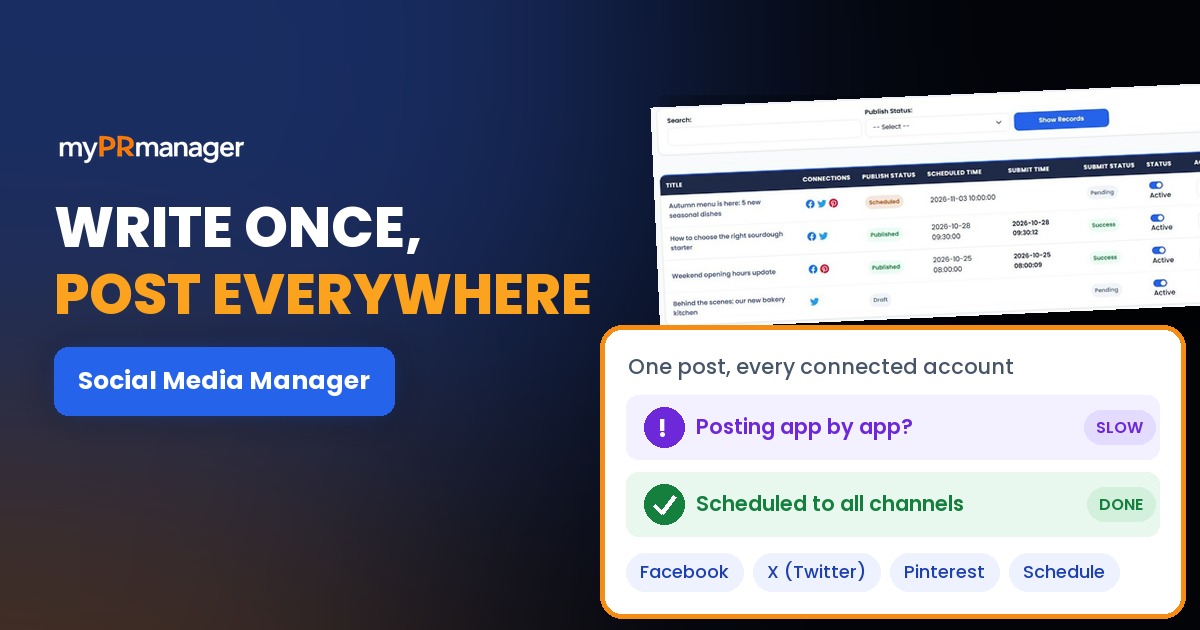
Table of Contents
- Key takeaways
- What is a social media manager tool?
- How Social Media Manager works
- 1. Connect your social accounts
- 2. Create a new post
- 3. Add an image
- 4. Choose accounts and preview
- 5. Publish, schedule or save as a draft
- 6. Manage posts and check reports
- What to get right first
- Social Media Manager vs. other My PR Manager tools
- Who Social Media Manager is for
- Frequently asked questions
- Which social networks can I post to?
- Can I post the same update to several accounts at once?
- Can I change or cancel a scheduled post?
- Does it write posts for me?
- How do I know if a post was published?
- Start posting from one place
Posting regularly on social media is one of the simplest ways to stay visible to customers. But for most small businesses, it means logging in to Facebook, then X, then Pinterest, writing the same update three times, resizing images and trying to remember what went out where. It doesn't take long before posting becomes irregular, then stops altogether. Social Media Manager in My PR Manager puts it all in one place. Write a post once, add an image, choose which connected accounts it goes to, and publish it now or schedule it for later. Afterwards, submission reports show exactly where each post succeeded or failed.
Key takeaways
- Write one post and send it to several connected social accounts at once.
- Pull a title and description from any page URL, or generate them with AI.
- Upload an image or generate one with AI, then preview how the post looks on each platform.
- Publish now, schedule for a specific date and time, or save as a draft.
- Copy, edit, reschedule or cancel posts from Post Manager, and check results in Submission Reports.
What is a social media manager tool?
A social media manager tool (sometimes called a social media scheduler) lets you create posts in one place and publish them to several social networks, either immediately or at a time you choose. Instead of switching between apps, you plan your posts ahead, keep a record of what was published, and spend your time on the content rather than the logistics.
For a small business, the real benefit is consistency. Scheduling a week of posts in one sitting is far easier to keep up than remembering to post every day.
How Social Media Manager works
1. Connect your social accounts
Open Connection Manager and click New Connection to authorize each account you want to post to. Connections only need to be set up once and are then available every time you create a post. Connection Manager also shows which platforms are available on your account, as some may be marked Coming Soon while they're being rolled out, and your plan usage for connected accounts and posts per month.
2. Create a new post
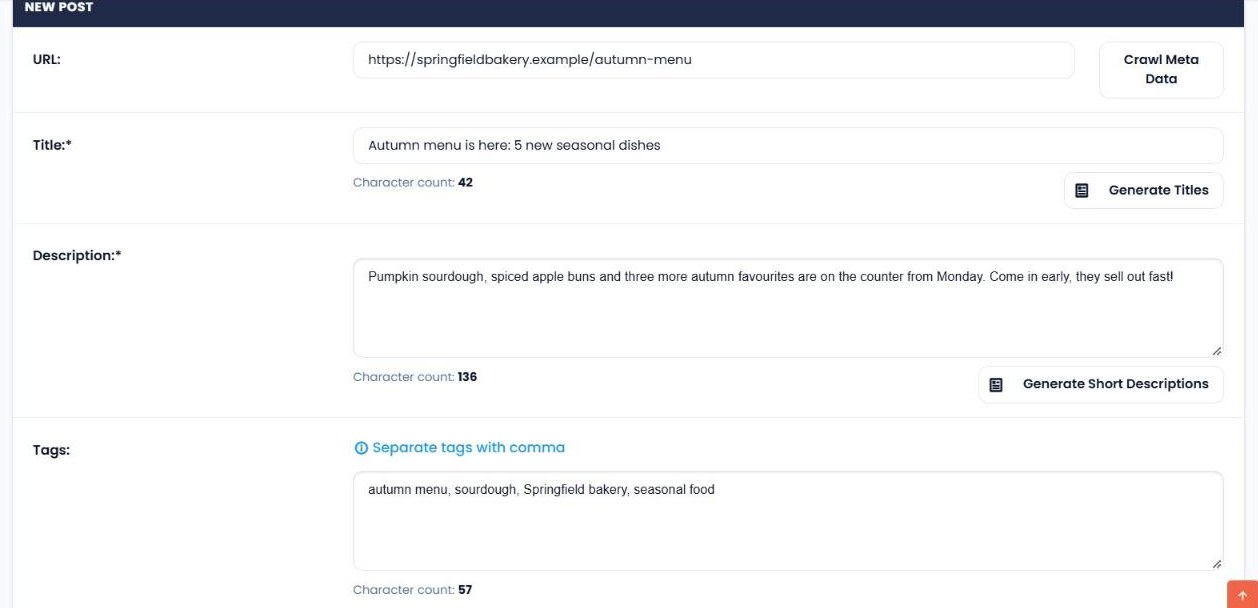
In Post Manager, click New Post. If you're promoting a page, paste its address into URL and click Crawl Meta Data to fill in the title and description from the page automatically. You can also write your own, or click Generate Titles and Generate Short Descriptions to get AI suggestions. Character counts help you stay within each platform's limits. Add tags separated by commas.
3. Add an image
Upload an image (JPG, JPEG, PNG, GIF, BMP or WEBP, up to 4MB) by dragging it in or browsing, or click Generate with AI to create one. Large files can be compressed before upload. Posts with images usually get noticeably more attention than text-only updates.
4. Choose accounts and preview
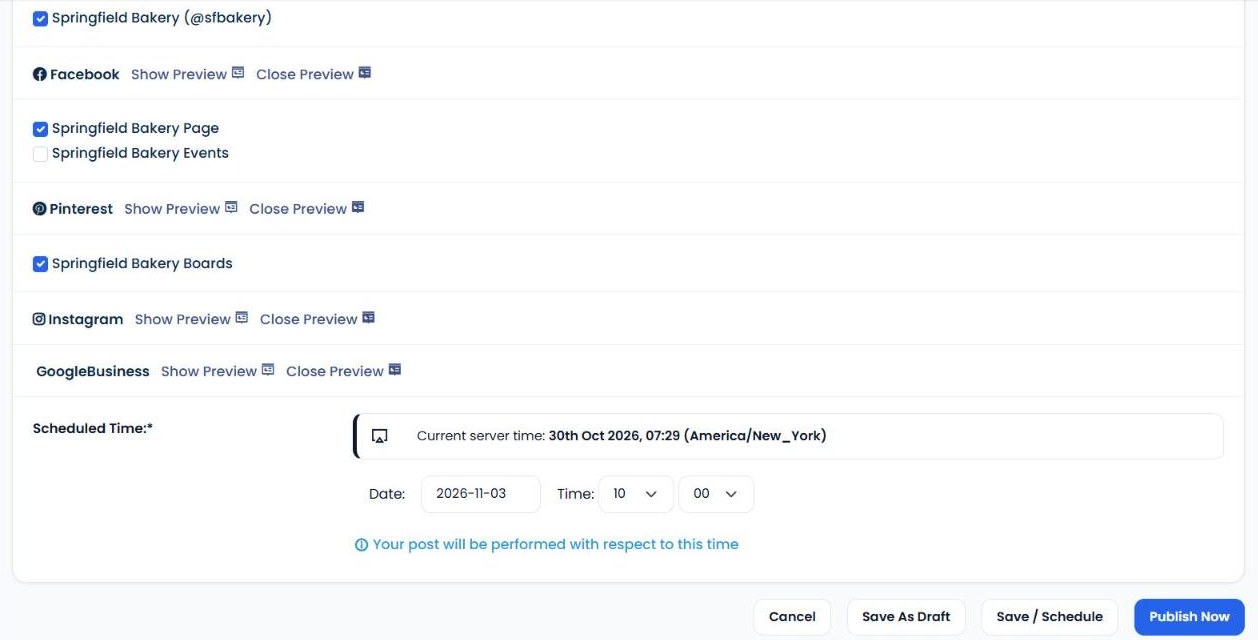
Under Social Media Connections, tick the accounts the post should go to. You can select several accounts on the same platform, such as two Facebook pages. Use Show Preview to see roughly how the post will look on each network before it goes out.
5. Publish, schedule or save as a draft
Set the Scheduled Time (the current server time and time zone are shown for reference), then choose Publish Now, Save / Schedule or Save As Draft.
6. Manage posts and check reports
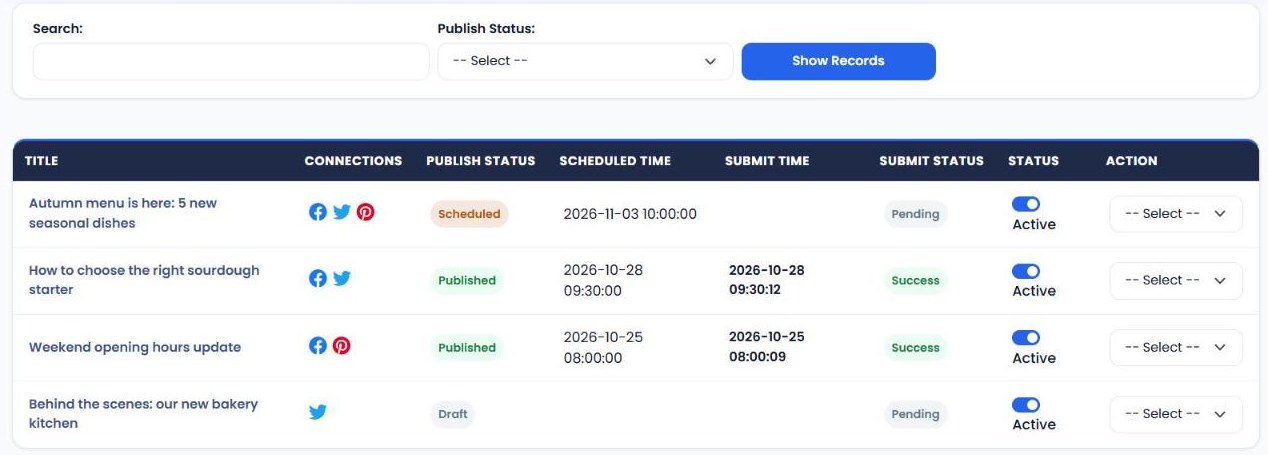
Post Manager lists every post with its connections, publish status, scheduled time, submit time and submit status. You can filter by status (Draft, Ready, Scheduled or Published), and use the Action menu on each post to edit it, publish it, cancel its publish schedule, copy it for reuse, open its submission report it.
Submission Reports show each post per connection, with its status (Success or Fail), scheduled and published times, and a submit log. Filter by post, connection, status or period to find out quickly why something didn't go out.
| Option | What it does |
|---|---|
| Publish Now | Sends the post to the selected accounts straight away. |
| Save / Schedule | Queues the post to go out automatically at the scheduled date and time. |
| Save As Draft | Saves the post without publishing, so you can finish or approve it later. |
| Copy Post | Duplicates an existing post, ready to edit and reuse. |
| Cancel Publish Schedule | Stops a scheduled post from going out. |
| Submission Report | Shows whether the post succeeded or failed on each connection, with a log. |
What to get right first
- Connect the accounts you actually use. It's better to post well on two networks than badly on six.
- Check the scheduled time. Posts follow the server time shown on the form, so confirm the time zone before scheduling.
- Always add an image. Upload your own, or generate one with AI if you don't have a suitable photo.
- Use the previews. Text that works on Facebook can be too long for X. Preview before publishing.
- Batch your posts. Write and schedule a week's posts in one session, then copy good posts to reuse later.
- Review Submission Reports. A failed post usually means a connection needs reconnecting. Fix it before the next scheduled post.
Social Media Manager vs. other My PR Manager tools
| Tool | Main job | Use it when |
|---|---|---|
| Social Media Manager | Write, publish and schedule individual posts to connected accounts. | You want full control over each post. |
| AI Posting Campaign | Generate a whole scheduled series of posts about one page with AI. | You want to promote a page over weeks without writing every post. |
| Social Media Checker | Track followers and activity on your social profiles. | You want to see whether your posting is growing your audience. |
| Business Post Manager | Manage and audit Google Business Profile posts. | You want to keep your Google listing active. |
Who Social Media Manager is for
- Small business owners who want to post regularly without spending time in several apps every day.
- Marketing teams who plan content ahead and need drafts, schedules and a record of what was published.
- Agencies and consultants who manage posts for clients and need reports showing what went out.
- Bloggers and publishers who want to share every new article across their social channels.
Frequently asked questions
Which social networks can I post to?
The composer includes Facebook, X (Twitter), Pinterest, Instagram, LinkedIn and Google Business Profile. Connection Manager shows which platforms are available to connect on your account; any that aren't ready yet are marked Coming Soon.
Can I post the same update to several accounts at once?
Yes. Tick every account you want under Social Media Connections, including more than one account on the same platform, and the post is sent to all of them.
Can I change or cancel a scheduled post?
Yes. Open the post from Post Manager to edit it, or choose Cancel Publish Schedule from the Action menu to stop it from going out.
Does it write posts for me?
It can help. Crawl Meta Data pulls the title and description from a page, and Generate Titles, Generate Short Descriptions and Generate with AI suggest text and images. If you want a whole series of posts written for you, use AI Posting Campaign.
How do I know if a post was published?
Post Manager shows the submit status for each post, and Submission Reports show the result for every connection, with a log explaining any failures.
Start posting from one place
Consistent posting is what keeps your business visible on social media, and it's much easier when everything is in one place. Sign in to My PR Manager, connect your accounts in Social Media Manager, and schedule your first week of posts today.
Related guides: AI Posting Campaign · Social Media Checker · Business Post Manager · New Project Setup