Connecting Google Analytics & Search Console (Webmaster Tools)
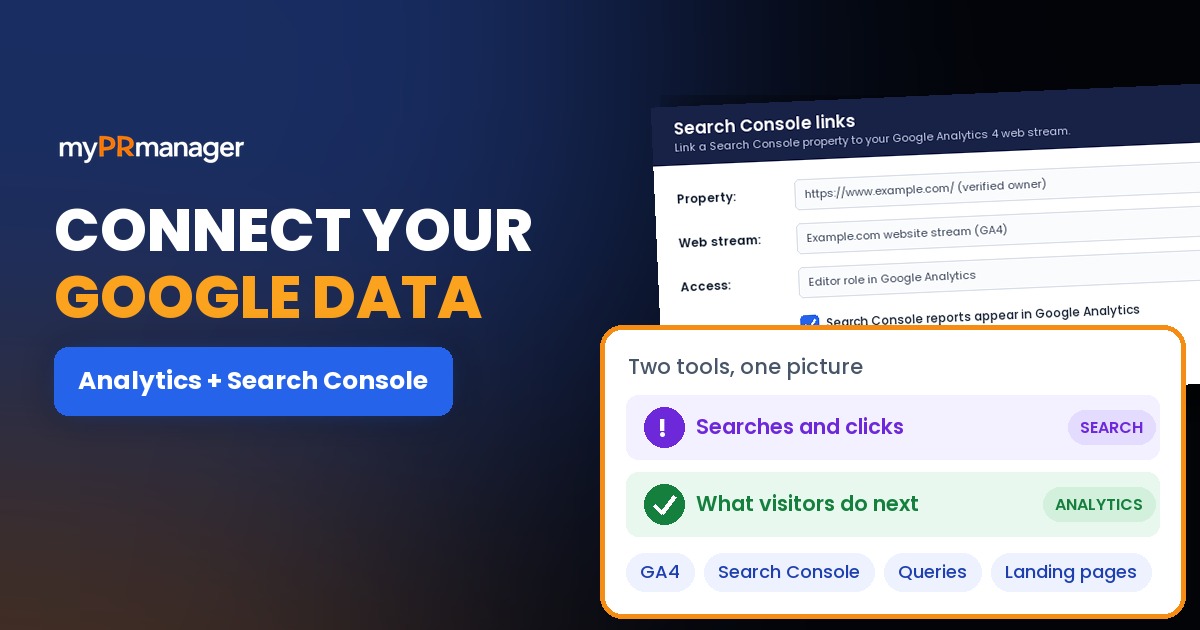
Table of Contents
- Key takeaways
- What are Google Analytics and Google Search Console?
- How to connect Google Analytics and Search Console
- 1. Check you have the right access
- 2. Open Search Console links in Google Analytics
- 3. Choose your Search Console property
- 4. Select your web data stream and submit
- 5. Publish the Search Console reports
- Connect both to My PR Manager
- Troubleshooting common issues
- Google Analytics vs. Google Search Console
- Who should connect Google Analytics and Search Console?
- Frequently asked questions
- Is Google Webmaster Tools the same as Google Search Console?
- What permissions do I need to link them?
- Can I link several websites?
- Can I use Search Console without Google Analytics?
- Why don't I see Search Console data in Google Analytics?
- Does connecting them affect my rankings?
- Does this work with any website platform?
- See your search and traffic data together
Google Analytics tells you what visitors do once they reach your site. Google Search Console (formerly Google Webmaster Tools) tells you how people find you in Google search in the first place: the queries they type, how often you appear and how often they click. Each one only shows half of the story. Connecting them puts search queries, impressions and clicks right next to engagement and conversions, so you can see which searches bring visitors who actually stay, read and buy. This guide shows you how to link the two in Google Analytics 4, how to see the new reports, how to fix the most common problems, and how to bring both into My PR Manager.
Key takeaways
- Google Webmaster Tools is now called Google Search Console. The linking steps below use the current names and screens.
- You link the two in Google Analytics 4 under Admin, then Product links, then Search Console links.
- You need the Editor role on the Google Analytics property and verified owner access in Search Console.
- After linking, publish the Search Console reports from the Library in Google Analytics. They're hidden by default.
- Connect both accounts to your My PR Manager project to see your search and traffic data side by side in one dashboard.
What are Google Analytics and Google Search Console?
Google Analytics 4 (GA4) measures what happens on your website: how many people visit, where they come from, which pages they view, how long they stay and whether they convert.
Google Search Console measures how your site performs in Google search: which queries you appear for, your average position, how many impressions and clicks you get, and whether Google can crawl and index your pages. Until 2015 it was called Google Webmaster Tools, which is why you'll still see that name in older guides.
Linking them doesn't change either tool. It lets Google Analytics show Search Console data, so you can follow a visitor from the search they typed to what they did on your site.
How to connect Google Analytics and Search Console
1. Check you have the right access
You need the Editor role (or higher) on the Google Analytics 4 property, and you must be a verified owner of the Search Console property. If you're not verified yet, you can verify ownership in Search Console first, or during the linking process.
2. Open Search Console links in Google Analytics
In Google Analytics, open Admin (the gear icon), find Product links and click Search Console links. Then click Link.
3. Choose your Search Console property
In the "Link to Search Console properties I manage" row, click Choose accounts, select the Search Console property for your website, click Confirm and then Next.
4. Select your web data stream and submit
Choose the web data stream for the same website, click Next, review the settings and click Submit. Your link now appears in the Search Console links table.
5. Publish the Search Console reports
The Search Console reports are unpublished by default. In Google Analytics, go to Reports, open the Library, find the Search Console collection and publish it. It will then appear in your reports menu.
| Report | What it shows you |
|---|---|
| Google Organic Search Queries | The search queries people used to find your site, with clicks, impressions, click-through rate and average position. |
| Google Organic Search Traffic | Your landing pages from Google search, combining Search Console metrics with Analytics engagement and conversion data. |
Data appears in Google Analytics about 48 hours after Search Console collects it, and covers up to the last 16 months, the same history Search Console keeps.
Connect both to My PR Manager
Once your Google accounts are set up, connect Google Analytics and Google Search Console to your project in My PR Manager. Your visitors, organic clicks, impressions and search queries then appear in your dashboard and reports, alongside your keyword rankings, backlinks and site audits, without logging into Google each time.
If you manage several websites, connect each site's Analytics property and Search Console property to its own project, so the data never gets mixed up.
Troubleshooting common issues
If the link or the reports don't work as expected, check these in order:
- Missing permissions. Confirm you have the Editor role in Google Analytics and are a verified owner, not just a user, in Search Console.
- Wrong Google account. Make sure you're signed in with the account that has access to both properties.
- Wrong property or stream. If you manage several sites, check that the Search Console property and the web stream are for the same website, including www and non-www versions.
- Already linked elsewhere. A web stream can link to only one Search Console property, and a Search Console property to only one web stream. Links can't be edited, so delete the old one and create a new link.
- Reports not visible. Publish the Search Console collection from the Library, as in step 5.
- No data yet. Wait at least 48 hours after linking. Also check that the Google Analytics tag is installed on every page of your site.
Google Analytics vs. Google Search Console
| Google Analytics 4 | Google Search Console | |
|---|---|---|
| Main question | What do visitors do on my site? | How does my site perform in Google search? |
| Key data | Users, sessions, engagement, conversions, traffic sources | Queries, impressions, clicks, average position, indexing |
| Covers | All traffic sources | Google search only |
| Technical health | No | Yes: crawl, indexing and page experience reports |
| Best together for | Seeing which searches bring visitors who engage and convert | |
Who should connect Google Analytics and Search Console?
- Business owners who want to know which Google searches bring real customers.
- Marketers and content teams deciding which pages and topics to improve next.
- SEO agencies that report on search performance and results for clients.
Frequently asked questions
Is Google Webmaster Tools the same as Google Search Console?
Yes. Google renamed Webmaster Tools to Search Console in 2015. The features you'd look for in Webmaster Tools are now in Search Console.
What permissions do I need to link them?
The Editor role on the Google Analytics 4 property and verified owner access to the Search Console property.
Can I link several websites?
Yes, one at a time. Each website's web data stream can link to one Search Console property. For My PR Manager, connect each website to its own project.
Can I use Search Console without Google Analytics?
Yes. They're separate tools and each works on its own. Linking them simply lets you see search and on-site data together.
Why don't I see Search Console data in Google Analytics?
Publish the Search Console collection from the Library, and allow about 48 hours after linking for data to appear.
Does connecting them affect my rankings?
No. Linking changes what you can see in your reports, not how Google ranks your site.
Does this work with any website platform?
Yes. As long as the Google Analytics tag is installed and your site is verified in Search Console, it works with WordPress, Shopify, custom sites and other platforms.
See your search and traffic data together
Link Google Analytics and Search Console once, publish the reports, and connect both to your My PR Manager project. You'll see which searches bring visitors, what they do next and where to improve, all in one place. New to My PR Manager? Start your free trial, or ask our support team if you get stuck.
Related guides: SEO Dashboard · Page URL Indexer · Keyword Position Checker · Site Auditor