My PR Manager SEO & Marketing Hub
Actionable insights to boost rankings, traffic, and conversions
Effortlessly Publish Articles with MyPRM Article Publisher: Boost Your Online Presence Today
Did you know that according to a survey, 72% of online marketers consider content creation as their most effective SEO tactic? This shows the importance of having a strong online presence through quality content. However, creating and publishing articles can be a time-consuming and daunting task. That's where MyPRM Article Publisher comes in.

The Power of MyPRM Article Publisher
MyPRM Article Publisher, offered by My PR Manager, is a powerful tool that simplifies the article publishing process for businesses. It allows businesses to effortlessly distribute their content and reach a wider audience. From writing and formatting to distribution and tracking, MyPRM Article Publisher streamlines the entire process.
The Benefits of Using MyPRM Article Publisher
With MyPRM Article Publisher, businesses can easily create, schedule, and publish articles and posts. The tool also allows businesses to announce their articles on all connected social media channels, increasing their online visibility. What's more, MyPRM Article Publisher uses AI to create articles just with a keyword, making the process even more efficient. Publish to hosted WordPress sites, WordPress.com, Blogger, TUMBLR with additional platforms coming soon.
How MyPRM Article Publisher Works
MyPRM Article Publisher is a user-friendly platform that simplifies the entire article publishing process. With just a few clicks, businesses can showcase their expertise and increase their online presence. The tool also offers MyPRM Knowledge Cards, which allow businesses to add their business details to their articles, fully embracing the power of AI-generated content.
Article Site Connections
Before you can create articles, you need to connect a Blog Site that you can publish to. Add hosted WordPress sites, WordPress.com sites, Blogger, and TUMBLR. MyPRM is actively working on releasing additional publishing site platforms soon.

Here is an example of a hosted WordPress Site setup screen. Fill in the fields and CONNECT. Make sure to ADD the categories and tags you want this connection to use. If you have multiple projects set up in MyPRM, you have the option of setting a site connection to "Public". When set to Public, the site will be seen by all your active MyPRM Projects.

Next, if you are using AI to generate your articles, it is best to set up a couple of knowledge cards to give the AI better details on your brand/service/products. You can play with how, what, and the amount of data you place in the knowledge card to influence how the articles are written.

Now you can create an Article Project. Below is an example of setting up a SINGLE ARTICLE Project. Projects can get re-used unlimited number of times. The purpose of projects is to streamline ongoing work by not having to enter all the data every time. Instead setup reusable article projects. Here you will choose which site connection you are using, if you want to announce the article on Social Media channels, as well as other details.

Unlike creating a Single Article, a Multi-Post Article Project lets you make selections and, based on the selections, calculates how many unique articles you need created to publish on multiple Article / Blog Sites.

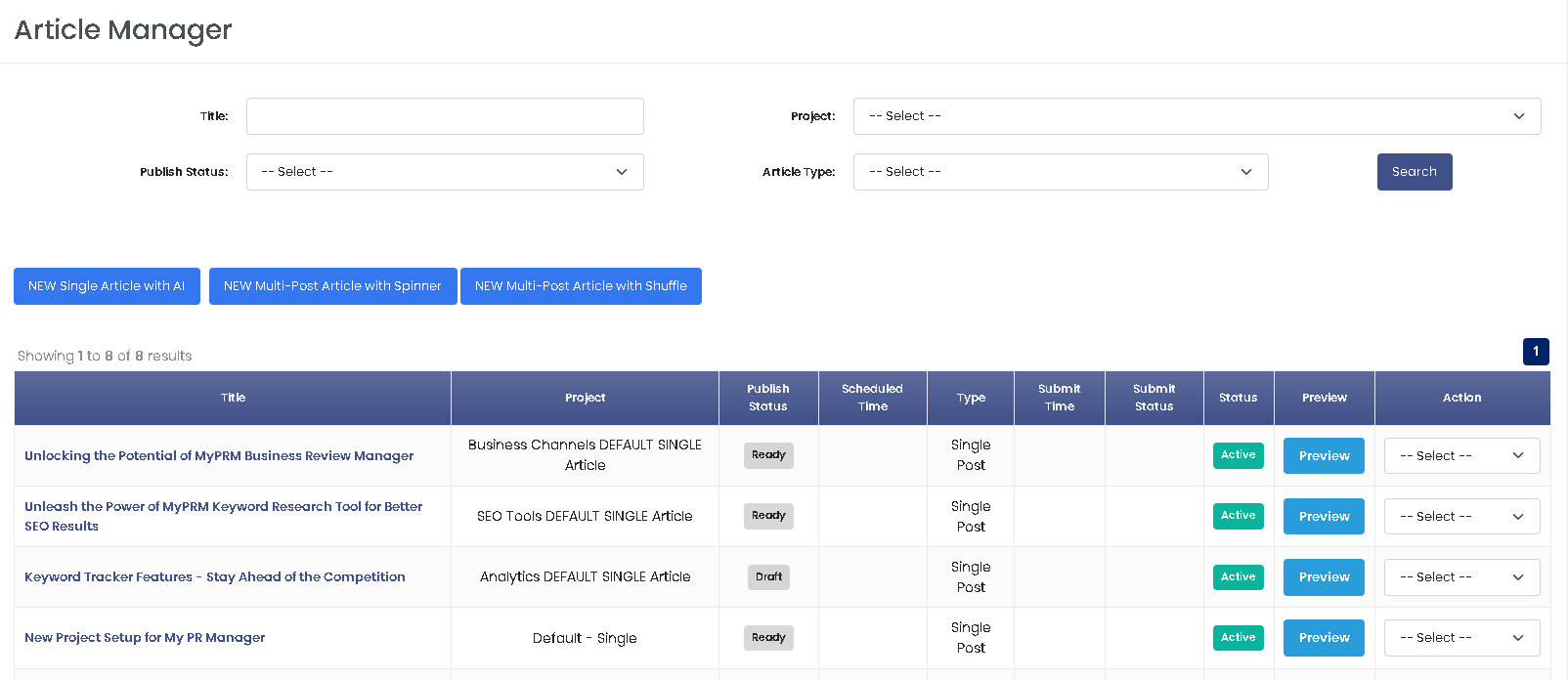
Once you have an Article Project set up, you can go to the Article Manager screen and click to create a new article. You have THREE options.
1. Single Article (with and without AI)
2. Multi-Post Article using Spin Rewriter to generate multiple unique articles from the main article.
3. Multi-Post with Shuffle Technology, which re-shuffles paragraphs and headings to keep unique and pass Google duplicate testing.

Now, create a SINGLE article by filling in the fields below. Easily create the title with AI by entering a keyword/phrase and clicking the BLUE button to create the title. The AI will return multiple titles so you can select the best one for your article.

With the description, if using AI to build, click on the button to create description options. You will have the option of adding a knowledge card to the description to better brand your descriptions for a business. Once you get back the multiple description options, select one and continue.
Next, to generate the article using AI, first click on "more AI options". Once the pop-up opens, make your selections to give the AI the needed instructions to build your article. Once ready, click on the generate article button and wait about one minute.
Please note: The AI is always learning. The more articles you generate and publish, the better your AI will know how you like articles written best. Sometimes articles may generate, and the AI places a duplicate of the heading on top, or doesn't add the needed heading tags.
You should never trust an AI 100%. It is always the best practice to proofread the generated article and optimize as well as correct things like headings or missing information. If youcompletely don't like what was produced, simply click generate article again. If you notice that you still don't like what's getting produced, you may want to look at what information is in the knowledge card and AI article options. You may need to tweak your input and settings; however, once you do, they will generate your way every time.

At the bottom, you can upload a FEATURE image to ADD to the article when published.
NOTE: You can add media like pictures and videos inside the article with links.

Once you have created your article and proofed it, you can go to the Article Publisher Scheduler. Here you can select your Project / Article and schedule to publish or publish immediately.

Once you have proofed your settings, click to Publish.

After you have published articles, you can see the status in the Submission Reports. Here you can also click to visit live link.

Frequently Asked Questions (FAQs)
Q: How does MyPRM Article Publisher save time for businesses?
A: MyPRM Article Publisher uses AI to create articles with just a keyword, eliminating the need for businesses to spend time writing articles and performing minimal formatting on their articles.
Q: Can I schedule my articles to be published at a specific time?
A: Yes, MyPRM Article Publisher allows you to schedule your articles to be published at a specific time and date.